Person Detection Not Working on Security Cameras Troubleshooting
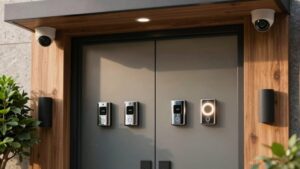
If person detection isn’t working, start by confirming Person Alerts are enabled in the app and Other Motion is off. Then check motion sensitivity, detection zones, and humanoid filters. Inspect mount height and tilt (9 ft outdoor, ~7 ft indoor, 30–45° down) and avoid glass or heat sources.
Tighten exclusion zones; rule out weather or foliage motion. Reboot and update firmware, and verify stable power/network. Continue below to get step-by-step tests and log collection tactics.
Person Detection Not Working on Security Cameras Troubleshooting: If person detection isn’t working, start by confirming Person Alerts are enabled in the app and Other Motion is off. Then check motion sensitivity, detection zones, and humanoid filters . Inspect mount height and tilt (9 ft outdoor, ~7 ft indoor, 30–45° down) and avoid glass or heat sources.
Quick Overview
- Verify Person detection and alerts are enabled in the app and set to record and send only person events.
- Check mounting height (9 ft outdoor / 7 ft indoor) and 30–45° downward tilt to improve silhouette and reduce pet/ground triggers.
- Tighten motion zones and exclude driveways, roads, and foliage. Test with known subjects at multiple distances and angles.
- Inspect firmware; reboot device; and confirm stable power/network (wired preferred) to rule out software or connectivity issues.
- Audit lighting, weather, and background motion (glare, vegetation, rain). Adjust exposure, HDR, or reposition camera to improve contrast.
Who This Guide Helps and How to Use It
Who benefits from this guide and how should you use it? You’ll find this useful if you’re troubleshooting person-detection failures: false positives, missed alerts, or degraded accuracy on one or multiple security cameras. You’ll use the guide to identify symptoms, collect diagnostic data, and apply targeted fixes for indoor or outdoor installs. This includes mounting-height effects; the typical recommendation is 7–9 feet.
You’ll follow a structured workflow. First, document model and firmware; note mounting height and environment (e.g., cobwebs, snowfall). Next, reproduce the issue and log time-stamped clips. That info makes community responses precise and actionable.
Learn how to engage the community by summarizing symptoms, steps tried, and exact device data. Include clips and settings. The guide also tells you where to post questions: manufacturer forums, product-specific subreddits, and technical support threads. This ensures you get focused help fast. Use the checklist sections to streamline support interactions and prioritize fixes.
Quick Checklist: Stop Person-Alert Flooding
Want to stop a flood of person alerts fast? Start with alerts management basics: confirm Person Alerts are enabled. Then disable non-human triggers by toggling off Other Motion to remove spurious event sources.
Next, inspect camera placement. Adjust indoor units toward ~7 ft and outdoor toward ~9 ft where practical. Avoid very low mounts (around 4 ft) that increase detections from pets or small objects.
Audit Motion Zones to exclude driveways, neighboring yards, and vehicle paths so irrelevant motion won’t generate notifications. Tune sensitivity and object-size thresholds incrementally; don’t max sensitivity, and raise size thresholds to filter small non-person objects.
Enable humanoid filtering if available to reduce false positives from animals, foliage, or shadows.
Finally, reboot devices and update firmware/apps. Conduct controlled tests: record a person walkthrough and simulate non-human stimuli (snow, cobwebs). Review results and iterate settings until person alerts are consistent and false positives are minimized.
Verify App Settings for Person Detection
Where should you look first in the app? Open the device page and verify app settings under Motion Settings: confirm Person Alerts are enabled and set to Record and Send alerts.
Next, inspect Motion Sensitivity. Do not leave it at Min; increase sensitivity so the algorithm receives sufficient input to classify persons.
Check that Humanoid/Person detection is active and not overridden by other motion rules. Verify app settings for Detection Zones: ensure zones include the expected human paths and are not excluding those areas. Review any recent zone edits that could block person triggers.
Also confirm push notifications are enabled both in the Ring app and in your phone’s system notification settings so alerts reach you. If you use multiple rules, test by temporarily disabling secondary rules to isolate conflicts.
Log changes you make and run a controlled walk-test to validate the new settings. Consider privacy concerns and cloud storage when adjusting recording and alert retention policies.
Mounting, Height, and Camera Angle Best Practices
How high should you mount your camera to get reliable person detection? Mounting height critically influences detection: follow manufacturer guidance (indoor ≈7 ft, outdoor ≈9 ft) as baseline, but note some setups accept approximately 4 ft. Avoid mounting below 5 ft where range shortens and pets or debris trigger false events.
Set camera angle to a 30–45° downward tilt to reduce frontal views, extend detection distance, and improve silhouette recognition. Do not aim at glass, bright windows, or heat sources (A/C units) since reflections and thermal noise degrade performance. After any adjustment, re-test with a known subject at multiple distances and angles.
Make incremental height changes rather than large shifts to balance field of view and proximity. Document each position and result so you can revert. If detection remains poor, reposition for a clearer approach path or consult your camera’s recommended mounting height and camera angle specifications before replacing hardware.
Motion Zones and Exclusion Rules That Reduce False Positives
Why are motion zones your first line of defense against false alarms? You define motion zones to limit detection to intended areas and apply exclusion rules for predictable non-human activity. Start by mapping the subject path and aligning zones to cover sidewalks, doorways, or yards while excluding roads, neighbor properties, and background clutter.
Exclude vehicle lanes, bicycle routes, and foliage edges to prevent triggers from cars, bikes, or wildlife crossing the frame. Place zones tightly around the target path; overly large or misaligned zones produce inconsistent false positives.
Iterate: adjust, run live tests, and review event clips to confirm reductions in spurious alerts. Combine motion zones with humanoid/person detection settings so the system filters non-human signatures within zones, lowering false alerts further.
Maintain a methodical tuning log—zone geometry, exclusion rules applied, and test outcomes—so you can reproduce successful configurations and quickly revert changes if false positives return.
Weather, Lighting, and Background Movement to Watch For
Facing variable weather, lighting, and background motion can quickly erode person-detection accuracy. You should treat these factors as primary tuning constraints. Inspect common weather effects: drifting snow, rain, fog, steam, and cobwebs. Note how each creates spurious motion regions or obscures silhouettes.
Where precipitation or mist reduces contrast, expect increased misses. Where wind drives vegetation or passing vehicles produce background motion, expect repeated false alerts.
Audit camera orientation and exposure to mitigate lighting challenges. Reduce direct glare, adjust angle to limit backlighting, and enable HDR or low-light modes where available. Configure motion zones to exclude consistent background sources (trees, bushes, adjacent traffic). Tighten sensitivity during storms or at dawn/dusk when shadows shift rapidly.
Log performance before and after each change so you can quantify improvement. Treat adjustments as iterative: modify one variable at a time, re-evaluate detection rates, and document settings that balance reliability against necessary coverage.
Firmware, Power, and Network Checks for Reliable Alerts
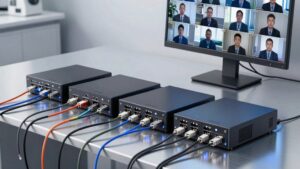
Environmental tweaks only go so far. Now check the system itself: firmware, power, and network; because hardware and software faults will undermine any tuning you apply. First, confirm firmware updates are current on every camera and the NVR/cloud gateway. Outdated firmware can degrade person-detection models and cause false negatives. Apply vendor-recommended patches, then reboot devices to finalize installs.
Next, verify power stability: inspect connectors, use dedicated circuits or PoE injectors/switches, and measure voltage under load. Fluctuations or brownouts will disrupt sensors and processing, producing intermittent alerts.
Then assess network reliability. Check LAN throughput, packet loss, and Wi-Fi signal strength at each camera location. Weak or unstable links delay frames and can prevent real-time detection. Prioritize wired connections where possible, segment camera traffic, and set QoS for video. Finally, ensure person-detection features and humanoid/people filters remain enabled in the app after updates.
Log changes and monitor for consistent alerting before moving to placement or sensitivity tweaks.
Test Person Detection: Quick Validation Steps
Ready to confirm person detection is working? First, open the app and verify Person detection is enabled, and alerts are configured for person events. Confirm Motion Settings record and send alerts only for “Person,” so you isolate person-detection behavior from other motion types.
Position a test subject in a clear frontal view at varying distances and heights. Note that mounting around 4 feet indoors is considered low and may reduce detection reliability. Adjust angle or height if targets are consistently missed. Observe detections and compare to video: you want consistent person triggers, minimal false positives from pets, shadows, or moving objects, and reliable alert delivery.
If detections are inconsistent, reboot the device and reinstall firmware to rule out software glitches. Repeat the controlled tests after reboot. Log which distances, angles, and settings produced reliable detections to guide mounting and configuration for optimal alert reliability.
Escalation, Logs to Gather, and Requesting Feature Improvements
Why did person detection stop labeling events while general motion still triggers? Start escalation by gathering device details: camera model, firmware and hardware versions, app version, and exact reproduction steps.
Collect escalation logs covering a specific timeframe before and after failed detections. Include event timestamps and export raw clips or motion-event records. Capture screenshots or a collage of missed person instances and note environmental conditions: lighting, angle.
When you submit, include clear reproduction steps that show false negatives. For example, frontal views that weren’t labeled. Ask support for more granular logs or telemetry from the detection pipeline: frame-level inference outputs, confidence scores, and filter-stage decisions to isolate humanoid filtering regressions.
For feature improvements, request enhanced person-detection algorithms, refined false-positive filtering, and in-app visibility of detection confidence and reasons. Prioritize reproducible cases and attach all logs; that speeds triage and informs product teams for potential feature improvements.
Frequently Asked Questions
Does Person Detection Work With Third-Party NVRS or RTSP Streams?
Yes, person detection can work with third-party NVRs or RTSP streams, but it depends on the NVR’s analytics or the external VMS you use. You’ll need to ensure proper tips for camera placement to reduce false positives. Additionally, confirm network bandwidth requirements for multiple high-resolution streams. Use compatible codecs, stable timestamps, and low latency.
If the NVR lacks analytics, run detection on a separate server or edge device that supports the streams.
No, you can’t share a single person-detection license across multiple cameras; licenses are per-device or per-channel depending on vendor. You’ll need to assign licenses individually or use a pooled license server if the vendor supports it.
For deployment, verify capacity, firmware compatibility, and license mapping. Use two word discussion idea1 to plan scaling and two word discussion idea2 to document configurations. Ensure consistent analytics versions and monitoring for license contention.
Do Pets Trigger Person-Detection Learning or Adjustments?
Yes, pets can trigger person-detection learning adjustments. You’ll see occasional false positives as the model updates from observed motion and labeled events. If you feed feedback (confirming or denying person detections), the system adapts weights and thresholds.
Repeated pet-triggered signals can bias classifiers toward false person patterns. You should label pet events, apply exclusion zones, and adjust sensitivity to prevent pets from degrading person-detection accuracy over time.
Will Privacy Masks Block Person Detection in Adjacent Zones?
Yes, privacy masks can block person detection in adjacent zones if the mask overlaps sensor or algorithm regions. You’ll want to verify mask geometry and zone definitions in the camera’s configuration. Masks hide pixels from analysis; adjacent zones that rely on those pixels may lose detection capability.
Adjust mask boundaries or redefine detection polygons so they don’t intersect. Then, test with controlled motion to confirm person detection performance.
How Does Face Blurring Affect Person-Detection Accuracy?
Face blurring can reduce person-detection accuracy by obscuring facial features used in classification. You’ll see higher false negatives and lower confidence scores. Technically, blurring alters pixel patterns and gradient information. This degrades model feature extraction and increases ambiguity between person and background.
For privacy impact, stronger blurring yields greater protection but worsens detection. You should test blur levels; retrain or fine-tune models with similarly blurred samples to mitigate accuracy loss.
Conclusion
You’ve now got a clear troubleshooting path to stop person-alert noise and restore reliable detections. Start with the quick checklist, confirm app detection settings, and adjust mount height and angle to minimize false triggers.
Use focused motion zones and exclusion rules; account for lighting and environmental motion, and keep firmware, power, and network stable. Run the quick validation tests, collect logs if needed, and escalate with precise evidence or feature requests when problems persist.
Related reading: Tuning Motion Detection Sensitivity on Security Cameras — a closer look at this topic.