Onvif Compatibility Explained for Ip Cameras and Nvrs
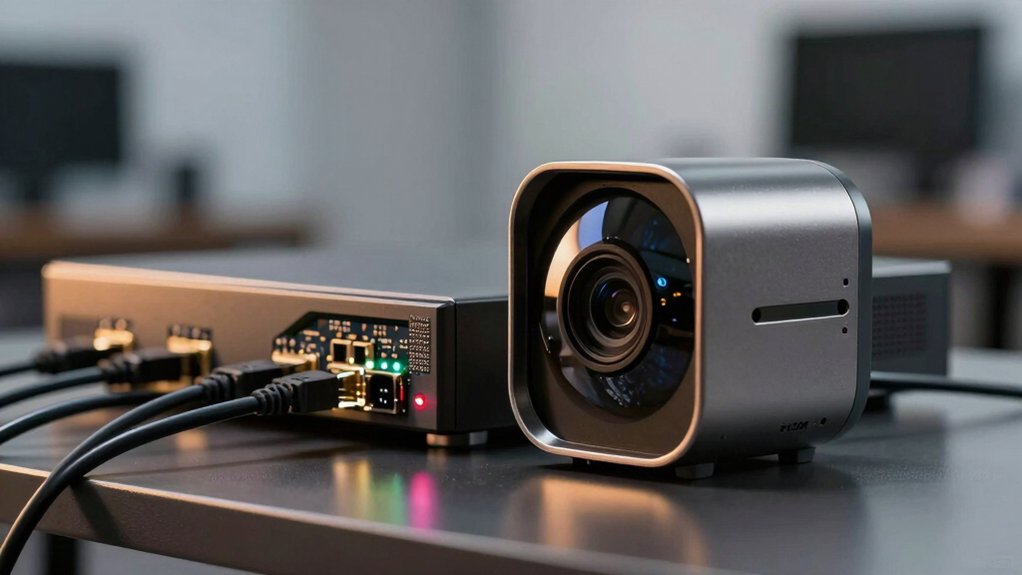
You’ll want to confirm that both the camera and NVR support the same ONVIF profile(s) (S, G, T, M) and run compatible firmware before pairing. This is important because profiles dictate streaming, PTZ, recording, metadata, and analytics.
Use the ONVIF Conformant Products list or ONVIF Device Manager to verify supported profiles and endpoints. Then, add the camera to the NVR and validate live view, events, and playback. If they match and the firmware’s current, it should work.
Keep going to see verification steps and fixes.
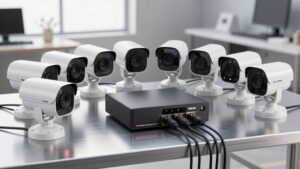
Onvif Compatibility Explained for Ip Cameras and Nvrs: You’ll want to confirm that both the camera and NVR support the same ONVIF profile(s) (S, G, T, M) and run compatible firmware before pairing. This is important because profiles dictate streaming, PTZ, recording, metadata, and analytics. Use the ONVIF Conformant Products list or ONVIF Device Manager to verify supported profiles and endpoints.
Quick Decision Flow: Will This Camera Work With That NVR?
Want a quick yes-or-no? Start by confirming both devices list the same ONVIF profile(s): S, G, T, or M. Use the ONVIF Conformant Products directory. If profiles don’t match, the camera likely won’t support required features. A mismatch can block streaming, metadata, or PTZ.
Next, verify firmware versions on the camera and NVR. Wrong firmware or outdated branding can mask true capabilities or remove profile support. Update devices to vendor-released firmware that explicitly notes ONVIF profile compatibility before further testing.
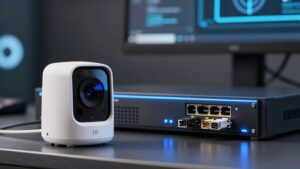
On the same network, attempt ONVIF auto-discovery and add the camera to the NVR. Verify live view, recording triggers, and PTZ control (if Profile S is claimed). For advanced analytics or metadata, confirm Profiles T/M are present on both ends.
If any function fails, recheck directory listings and firmware history. Then retry with confirmed-conformant firmware. If problems persist, treat the camera/NVR as incompatible.
Which ONVIF Profiles Matter (S, G, T, M, C) and When to Choose Each
After you’ve checked profiles, firmware, and basic interoperability, pick the ONVIF profile that matches the features you actually need. Use Profile mapping to match device capabilities to system requirements within the ONVIF scope.
Choose Profile S for baseline CCTV: real‑time video, basic audio, PTZ control, and remote config. This profile is ideal for cross‑brand streaming.
Select Profile G when you need edge storage and retrieval; it lets cameras or an ONVIF‑compatible NVR/VMS record and serve playback.
Opt for Profile T when you require advanced streaming and analytics support: H.264/H.265, HTTPS, motion/tamper events, and metadata for analytic engines.
Use Profile M when your focus is metadata and analytics integration—event streams, object tagging (people, vehicles), and IoT outputs like MQTT.
Pick Profile C (and Profile D for peripheral access) only when you integrate physical access control or door peripherals with management software.
Match profiles to functions; don’t enable unused profiles to minimize complexity.
What ONVIF Standardizes : and Its Limits for Camera↔NVR Setups
How exactly does ONVIF help your camera↔NVR setup, and where does it stop? ONVIF standardizes network communication, service calls, and feature sets via profiles so cameras, NVRs, and VMS from different vendors interoperate predictably. Profiles (S, T, G, M, C) declare mandatory and optional services: discovery, PTZ control, eventing, and streaming parameters. That includes supported compression codecs and transport mechanisms, plus secure streaming options (e.g., HTTPS) where Profile T applies.
Limits: ONVIF doesn’t mandate every vendor feature, UI behavior, performance, or proprietary enhancements. Devices labeled “ONVIF-compliant” may implement different profile subsets; therefore, you must confirm exact profiles. ONVIF licensing governs logo use and conformity claims. The Conformant Products directory is the authoritative reference. Firmware updates can add or remove profile support, affecting interoperability. For highest reliability, choose devices that explicitly share the same ONVIF profile set rather than relying on the generic claim of compliance.
Verify ONVIF Compatibility: Tools, Manufacturer Checks, and Real Tests
Where do you start when confirming ONVIF compatibility for a camera or NVR? First, consult the ONVIF Conformant Products list to verify vendor support and the exact profiles (S, G, T, M) claimed. Next, run ONVIF Device Manager on your LAN to discover live devices, confirm IPs, see supported profiles, and check basic status and enabled client connections.
If a device isn’t on the conformant list, contact the manufacturer for the official product listing URL and explicit profile statements. Inspect the device web interface for ONVIF profile mentions and ensure client access is enabled.
Perform a real test by adding the camera to your target NVR or client using ONVIF credentials. Then, validate video, PTZ, and event behaviors tied to the advertised profiles. After any firmware updates, re-run these checks; firmware updates can change compliance. Then, re-confirm the product against the ONVIF directory and vendor documentation.
Common Compatibility Pitfalls (Firmware, Profiles, Feature Gaps) and Fixes
Why did that camera stop working with your NVR after a firmware update? Firmware quirks often change ONVIF behavior. Updates can enable or disable Profiles S, T, or M; this shifts what services the device exposes. You should check release notes and rollback options immediately.
Many vendors advertise “ONVIF-compatible” without listing the specific profile. Profile surprises occur when a camera only implements Profile S (basic streaming) while your NVR expects T or G for PTZ, analytics, or edge storage. Profiles are inconsistently implemented; basic RTSP may work on one VMS while metadata, HTTPS, or motion events fail on another.
Fixes: Confirm exact profile support in product specs or the ONVIF Conformant directory. Test endpoints with an ONVIF tool to enumerate services. Ask vendors for firmware history or a profile matrix. If needed, lock firmware versions or choose devices that explicitly list Profile T/G/M and required features.
Frequently Asked Questions
Can ONVIF Guarantee Audio Streaming Compatibility Between Devices?
No, ONVIF can’t guarantee audio compatibility between devices. You’ll get standardized signaling and discovery that helps audio compatibility; however, implementations vary, codecs differ, and proprietary extensions cause streaming latency and feature gaps.
You should verify codec support, RTP/RTSP behavior, and sample rates on each device. Test end-to-end streams and measure streaming latency in your network. Plan firmware updates and fallback codec strategies to ensure reliable audio streaming.
Will ONVIF Handle User Accounts and Permissions Across Camera and NVR?
No: ONVIF doesn’t centrally enforce account permissions or a cross-device policy across camera and NVR. You’ll rely on each device’s local user management and ONVIF’s limited user service for querying or setting accounts where supported.
For consistent cross-device policy, you’ll need a management system (VMS or directory) that provisions credentials and syncs roles via APIs or LDAP/AD integration. Then configure devices to accept those credentials.
Do ONVIF Profiles Ensure Encrypted Rtsp/Onvif Communication by Default?
No, ONVIF profiles don’t force encrypted RTSP/ONVIF by default. You’ll use protocol negotiation to select TLS/HTTPS/SRTP where supported; however, devices may still permit plain RTSP/HTTP.
For proper security modeling, you must enable and verify encryption standards (TLS versions, SRTP ciphers) on both the camera and NVR. Also, validate integrity safeguards like message signatures and certificate validation to ensure communications are actually protected end-to-end.
Can ONVIF Manage Scheduled Recordings on Third-Party NVRS?
Yes, ONVIF can manage scheduled recordings on third-party NVRs; however, capabilities vary by implementation. You’ll use the Scheduled Interoperability features (recording, schedule, and task services) and configure cross-vendor permissions via device profiles and access control.
Ensure both camera and NVR expose the necessary Recording and Event APIs, authenticate properly, and test schedule triggers. Expect vendor-specific extensions; verify supported ONVIF profiles and SOAP/REST endpoints to guarantee reliable scheduling.
Are Firmware Auto-Updates Standardized Through ONVIF for All Devices?
No, you can’t rely on firmware auto updates being standardized through ONVIF. ONVIF standardization covers discovery, video streaming, PTZ, events, and some device management APIs; however, it doesn’t mandate a universal firmware auto updates mechanism.
Vendors implement firmware auto updates differently, using proprietary servers, HTTP/FTP, or cloud services. If you need automated updates, verify each device’s supported update methods and whether they expose compatible management APIs.
Conclusion
You can usually pair ONVIF devices if they share relevant profiles; however, always verify specifics: Profile S/T for streaming, G for edge storage, M for metadata, C for device management.
Check firmware, supported codecs, and features like PTZ or analytics. Mismatches break functionality despite ONVIF labeling. Use ONVIF Device Manager, manufacturer lists, and live tests to confirm.
When in doubt, update firmware, try alternate profiles, or use RTSP as a fallback to ensure interoperability.
Related reading: NVRs for ONVIF Cameras in — a closer look at this topic.