Integrating Security Cameras With Google Home Automations

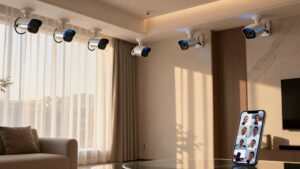
You can integrate hub-free Wi-Fi cameras with Google Home to automate motion alerts, doorbell actions, and scheduled recording without rewiring or a separate hub. Pick cameras with native Google/Nest support (Nest, Arlo, eufy) or “Works with Google” labels. Add them in the Google Home app; then tie motion, doorbell, or time triggers into routines to control lights, locks, and recordings.
Expect some live-feed latency with certain brands. Keep reading to get setup, troubleshooting, and rental-friendly privacy tips.
Integrating Security Cameras With Google Home Automations: You can integrate hub-free Wi-Fi cameras with Google Home to automate motion alerts, doorbell actions, and scheduled recording without rewiring or a separate hub. Pick cameras with native Google/Nest support (Nest, Arlo, eufy) or “Works with Google” labels. Add them in the Google Home app; then tie motion, doorbell, or time triggers into routines to control lights, locks, and recordings.
Best Cameras for Google Home : Hub‑Free Picks for Rentals
Looking for a simple, rental‑friendly security camera setup? You’ll want hub free considerations front and center: choose cameras that plug straight into your Wi‑Fi and pair via Google Home’s “Set up device” → “Works with Google” flow so you won’t alter a landlord’s wiring.
Nest gives native Google Home/Nest integration, 1080p video, and zero extra hub hassle. Arlo works too; you’ll get add‑device and voice controls, though live streams can be slower or flaky.
Ring offers voice control and notifications, but it won’t show live feeds in the Google Home or Nest Hub. If local storage privacy matters, eufy stands out: it stores footage locally without subscription fees, though it won’t stream live in the Google Home app.
For rentals, prioritize plug‑and‑play Wi‑Fi setup, clear Google account linking, and cameras whose storage and privacy model match your comfort level. This way, you can avoid extra hardware and subscription lock‑ins.
Add a Camera to Google Home : 6‑Step Quickstart
Ready to add your camera to Google Home? Follow this 6-step quickstart to get live feeds and voice control fast. First, connect the camera to the same Wi-Fi network as your Google Home device. Open the Google Home app, tap +, choose Set up device, then Works with Google to begin the integration. Pick your camera brand and follow the in-app instructions to finish setup.
Do a setup verification by asking a basic command like “Hey Google, show me the [Camera Name].” If it doesn’t respond, use voice control troubleshooting: open Assistant Settings in the Google Home app and enable/configure the camera integration.
- Confirm Wi-Fi credentials and camera power.
- Use the exact camera name when testing voice commands.
- Re-link the camera account if the device isn’t listed.
- Update firmware and the Google Home app before retrying.
This keeps the process predictable and minimizes common connection issues.
Automations: Turn Motion, Doorbell & Schedules Into Actions
When motion, doorbell presses, and schedules are tied into Google Home routines, you can turn simple events into coordinated security actions: like switching on perimeter lights at night, sending instant doorbell alerts to your phone, or pausing recording during work hours.
Use motion automation to trigger perimeter lighting after dark, improving visibility and deterring intruders at entry points. Configure doorbell events to start routines that illuminate indoor lights and push a real-time alert to your phone so you’ll see visitors immediately.
Apply schedule integration to enable or disable camera recording and alerts during set work hours or expected occupancy; this reduces unnecessary clips and interruptions. Centralize routines so cameras, lights, and locks act together: lock doors, brighten pathways, and start focused recording when a zone detects activity.
Regularly refine triggers: adjust motion sensitivity, set detection zones, and narrow time windows to cut false alerts while keeping reliable monitoring. Review and tweak routines periodically for consistent performance.
Troubleshooting Google Home Camera Issues (Live Delays, Voice, Permissions)
Automations work best when your cameras respond quickly and reliably. It is important to address common problems like live-feed lag, voice-command failures, and permission blocks. If you see live delays, Arlo can trail Nest by approximately 10 seconds; Ring won’t stream to Nest Hubs. Test feeds in the native app first, then in Google Home to isolate latency.
To enable voice control, add the camera via Set up device > Works with Google and run commands like “Hey Google, show me the [Camera Name].” If Assistant won’t talk to the camera, check Assistant Settings to confirm the device is recognized.
Verify Google account access and fix permissions issues that block streaming or thumbnails. Prefer brands with solid Google Home support (Nest, Arlo, Ring, eufy) for reliability. Use manufacturer apps for advanced diagnostics and firmware updates. Reauthorize integrations or remove/re-add the camera if recognition or permissions remain inconsistent.
Rental Setups: Hub‑Free Wi‑Fi, Local Storage Strategies & Privacy Tips
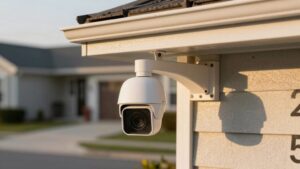
How do you outfit a rental with cameras that respect guests and stay low-maintenance? Pick hub free setup Wi-Fi cameras that join your existing network; no extra hub, lower complexity, fewer failure points. Verify Google Home integration supports local feeds so basic viewing doesn’t force external cloud accounts.
Design a local storage strategy: prefer microSD or on-device memory to cut cloud fees and keep footage on-site; test export/erase workflows. Choose models with built-in privacy features: physical shutter, configurable activity zones, and local erase controls to reduce unnecessary capture.
Limit access: give management-only rights and log access events. Publish a clear rental privacy policy and place conspicuous guest signage explaining what’s recorded, retention period, and who can view footage. Regularly update firmware, confirm encryption on your Wi-Fi, and periodically audit camera settings.
These steps keep cameras unobtrusive, legally compliant, and respectful of guests while staying simple to run.
Frequently Asked Questions
Can Google Home Trigger Cameras to Start Recording Only When I’m Away?
Yes, you can set Google Home to trigger cameras to record only when you’re away. Use Google Home routines with geo‑fencing automation or presence sensing to switch cameras into active mode.
However, weigh privacy concerns: limit footage retention, restrict sharing, and confirm camera firmware and Google account security. Test routines and backup automations (like manual arming) so recordings start reliably when your phone leaves the geofence and stop when you return.
Can I Integrate Third‑Party Cloud Storage With Google Home Recordings?
Yes, you can use third party cloud storage with some Google Home-compatible cameras; however, it depends on the camera maker and integrations they support.
You’ll need a camera that offers cloud storage via its vendor or a partner and an integration/API that links to Google Home. Check the camera’s documentation for supported cloud providers, RTSP/ONVIF options, or third-party integrations like IFTTT or manufacturer cloud plugins before committing.
Do Google Home Automations Work With Multiple Camera Brands Simultaneously?
Yes, you can use multiple camera brands in Google Home automations, but it depends on hardware compatibility and cloud/API support. You’ll set up each camera’s authorized integration. Then, create routines that trigger on motion detection from supported devices.
Keep firmware and app links updated. Use cameras labeled “Works with Google Home,” and test triggers. If a brand lacks native support, you can’t reliably include it in unified automations.
Can I Use Google Home to Control Pan/Tilt/Zoom Camera Movements?
Yes, you can use Google Home to control pan tilt and some zoom functions, but it depends on camera support. You’ll need cameras that expose PTZ controls to Google Assistant or integrate via a compatible hub.
Some brands let you issue voice or routine commands; others restrict movement to their apps. Cloud storage and subscription features don’t usually affect PTZ control; however, advanced analytics may require cloud plans. Check compatibility first.
You secure camera feeds by enforcing security best practices: enable strong, unique passwords, turn on two-factor authentication, and limit Google account sharing.
Review connected devices regularly; revoke unused third-party app access, and keep camera firmware and the Google Home app updated.
Use dedicated accounts for guests. Enable account recovery options (trusted phone, backup codes), and monitor login notifications so you can act fast if you spot suspicious activity.
Conclusion
You’ve got the tools to add cameras to Google Home, automate responses, and keep tenants’ privacy in mind without needing a hub. Pick hub-free models with reliable Wi-Fi and local-storage options. Follow the 6-step setup and create automations for motion, doorbell rings, and schedules.
If issues pop up, troubleshoot live delays, voice controls, and permissions promptly. With clear local-storage and privacy rules, your rental stays secure, functional, and compliant.
Related reading: Wired Video Doorbells Compatible with Google Home in — a closer look at this topic.