Using Smart Displays to View Doorbell Live Feed
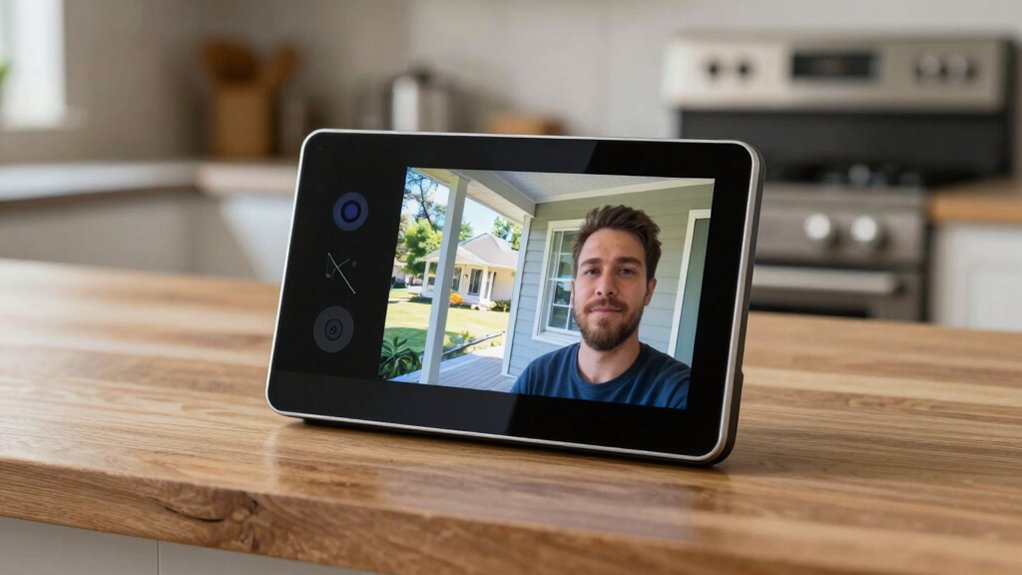
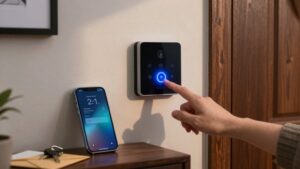
Link your doorbell account (Ring, Arlo, Nest, etc.) to Alexa or Google Home, enable the vendor skill or integration, then run device discovery so the camera appears as a doorbell/camera.
In Alexa or Google Home, you’ll enable Live View and notifications; assign the doorbell to rooms or announcement devices, and pick which Echo Shows or Nest displays get live feed and chimes.
Test button presses and motion alerts. Follow the app’s settings to troubleshoot further and learn setup details.
Using Smart Displays to View Doorbell Live Feed: Link your doorbell account (Ring, Arlo, Nest, etc.) to Alexa or Google Home, enable the vendor skill or integration, then run device discovery so the camera appears as a doorbell/camera. In Alexa or Google Home, you’ll enable Live View and notifications ; assign the doorbell to rooms or announcement devices, and pick which Echo Shows or Nest displays get live feed and chimes.
Quick Setup: Link Your Doorbell to Alexa or Google
WONDERING HOW TO GET YOUR DOORBELL CAMERA ON A SMART DISPLAY FAST? START THIS SETUP WALKTHROUGH BY OPENING THE ALEXA OR GOOGLE HOME APP AND ENABLING THE DOORBELL’S VENDOR SKILL (RING, ARLO, OR UFE) IN THE APP’S INTEGRATIONS OR WORKS WITH SECTION. SIGN IN WITH THE DOORBELL’S NATIVE ACCOUNT WHEN PROMPTED TO LINK SERVICES. THEN, RUN DEVICE DISCOVERY SO THE CAMERA APPEARS UNDER LINKED DEVICES, CAMERAS, OR DOORBELLS.
IN ALEXA, GO TO DEVICES > CAMERAS, PICK THE DOORBELL, AND CONFIGURE DOORBELL-PRESS ANNOUNCEMENTS AND LIVE VIEW OPTIONS FOR ECHO DEVICES AND SMART DISPLAYS. IN GOOGLE HOME, ASSIGN THE DOORBELL TO A ROOM AND ENABLE LIVE VIEW (WHERE SUPPORTED) AND NOTIFICATIONS ON LINKED NEST/GOOGLE DEVICES. TEST A PRESS AND A MANUAL LIVE VIEW LAUNCH TO CONFIRM BEHAVIOR.
AS YOU FINISH, REVIEW PRIVACY CONSIDERATIONS: LIMIT SHARING, USE STRONG VENDOR PASSWORDS, AND CHECK ACCOUNT PERMISSIONS TO ENSURE ONLY INTENDED DEVICES AND USERS CAN VIEW THE FEED.
Compatible Doorbell Cameras and Smart Displays (What Works)
Which doorbells work with which displays depends on the ecosystem you use. You’ll find Ring, Arlo, and UFE doorbells typically support live view on compatible smart displays via their Alexa skills, Google Assistant actions, or native apps. To enable unified streaming, link the doorbell skill or action in the assistant app and confirm the same account is used on the display.
In Alexa, open Devices > Cameras to enable Live View and announcements; ensure the camera is listed for Echo Show devices. Some platforms let you stream simultaneously to multiple displays. Check device compatibility and platform limits for concurrent streams.
If you use a third-party doorbell with a different display, enable live view permission in the display’s app settings so the feed is accessible. Keep privacy considerations in mind: only grant camera access to trusted accounts, review sharing settings, and disable features you don’t need to limit exposure.
Permissions, Discovery, and Device Naming Tips
Now that your doorbell and display are linked, make sure the assistant has the right permissions, that the camera is discovered correctly, and that you’ve given devices unambiguous names. Start by confirming permissions during skill linking: grant camera access and device control so live feeds and announcements can flow to Echo devices.
In the Alexa app, go to Devices > Cameras, open the gear icon for settings, and verify live view permissions.
For discovery, open Devices and check that the doorbell camera appears under linked accounts; if it doesn’t, re-run discovery or relink the skill. If you have multiple displays, assign a single primary display name for the doorbell feed to avoid cross-device confusion.
Apply permissions tips and naming strategies: choose clear, consistent names (for example “Front Door Camera”); avoid duplicate labels; and keep routine references identical to device names. These steps ensure reliable voice commands like “Show Front Door” and stable behavior across your smart displays.
Enable Live View & Announcements on Echo/Nest
Before you can see live video or get on-screen alerts, enable Live View and choose Announcement Devices for the doorbell in the Alexa app: open Devices > Cameras, select your doorbell, toggle on Live View, and then pick which Echo Shows or Fire TVs should display visual alerts or play the announcement when the doorbell rings or motion is detected.
After enabling live view, verify the doorbell appears under Cameras and that its skill (Nest or third-party) reports Live View support. Use Announcement Devices in the same camera settings to designate specific Echo Show or Fire TV endpoints that will show video or produce announcements.
Select multiple devices if you want concurrent viewing and announcements across rooms; supported displays (for example, Echo Show 8 or 4th Gen Show) will stream simultaneously when allowed.
Finally, test the configuration by pressing the doorbell and confirming the live feed appears on chosen displays while announcement audio plays on selected devices. Troubleshoot any missing permissions in the linked account or skill.
Pick Which Rooms and Devices Show Live View or Announce
Want specific rooms to show the doorbell feed or just hear announcements? In the Alexa app, go to Devices > Cameras, tap the gear icon for each doorbell, and control Live View availability per device. Use Announcement Devices to create device groups that will announce presses and motion across selected Echo Shows and smart displays.
For room mapping, pick the rooms that contain Smart Displays so the feed appears where you need it. You can select multiple rooms for multi-room coverage.
Turn on Live View for specific displays (Echo Show 8, Echo Show 5) to auto-display the feed on press or motion. If you need room-specific behavior, assign particular displays in a room to show live video while others only announce.
Review device groups periodically to ensure new devices inherit the correct room mapping and announcement settings. This setup lets you control who sees video versus who only gets an audible alert.
Test the Doorbell: Presses, Motion Alerts, and Simultaneous Live View
Ready to confirm everything works? Press the doorbell button and watch the live view appear on each connected smart display; you should see the front door feed immediately.
Next, simulate doorbell motion by walking through the camera zone and verify that doorbell motion triggers motion alerts and opens live view on your chosen Echo devices and displays.
Confirm announcements: each designated announcement device should emit the press and motion notifications while showing the live feed. Test multiple displays by requesting a view on each device in turn and then simultaneously to check for simultaneous streams. Observe for lag, dropped frames, or devices failing to show the feed.
While testing, validate that the front door feed remains visible on all configured devices throughout the session. If everything displays consistently and without interruption, your setup supports concurrent live view and real-time doorbell motion alerts across your smart displays.
Troubleshooting Live View Failures and Quick Fixes
If you hit any issues while confirming live feeds on your Echo Shows, start by checking the basic Alexa and device settings that most commonly block Live View. Verify the doorbell camera appears under Devices > Cameras. Ensure that the Echo Show supports Live View. Additionally, confirm that the chosen display is set as the primary Live View device (Devices > Cameras > [Doorbell] > Live View).
Update the doorbell firmware and the Alexa app. Confirm both camera and display use the same stable 2.4 GHz or 5 GHz Wi‑Fi with enough bandwidth.
| Feeling | Action |
|---|---|
| Frustrated | Re-link the doorbell skill in Alexa |
| Anxious | Re-discover devices |
| Relieved | Set primary Live View device |
| Confused | Check firmware and app updates |
| Confident | Verify network and retest |
If Live View still fails, reconfigure Live View and Announcement settings. For doorbell privacy, ensure permissions match your expectations.
For persistent lag, perform latency troubleshooting by testing bandwidth and reducing network congestion.
Frequently Asked Questions
Can Multiple People View the Live Feed Remotely at Once?
Yes, you can. You’re allowed multi user access so multiple people can perform remote viewing simultaneously, provided the doorbell system and cloud service support concurrent streams.
You’ll need each user to have proper account permissions and app credentials. Additionally, your bandwidth and device limits must handle multiple feeds. Check the provider’s device cap, subscription tier, and privacy settings to ensure reliable, authorized simultaneous access without interruptions or security conflicts.
Does Live View Record Automatically or Require Manual Saving?
Live view typically doesn’t record automatically; you’ll need to start recording or save clips manually unless your system’s subscription or settings enable automatic clip saving.
Check device options for event-based recording, continuous recording, or cloud storage. Make sure privacy indicators are enabled so people know when recording is active.
Review retention policies and encryption settings. Configure motion zones or schedules to avoid unnecessary captures and to comply with local privacy rules.
Can Smart Displays Stream Doorbell Audio Two-Way?
Yes, you can usually use smart displays for two-way doorbell audio; however, expect variable doorbell latency and occasional audio clipping. You’ll speak and hear through the display’s mic and speaker. The system routes audio via the cloud or local network.
Check privacy indicators (LEDs or on-screen icons) that show when mic or camera are active. Test your setup to confirm responsiveness, and adjust network QoS for lower latency.
Will Live View Work While My Phone Is on Cellular Data?
Yes, you can view live streaming while your phone is on cellular data; however, it depends on your setup and plan. You’ll use mobile data to fetch the feed, so monitor data usage closely.
Video quality settings, session length, and whether audio streams continuously will increase consumption. If you have limited data, lower resolution or use Wi-Fi when available to avoid overage charges and ensure consistent real-time performance.
Do Privacy Lights or Markers Appear During Live View?
Yes, you’ll see privacy markers and live view indicators during live view when enabled. Your device shows clear live view indicators (LEDs or on-screen icons) and privacy markers to signal active transmission.
Transmission latency can affect how quickly those indicators update; allow a second for status changes. Check your privacy settings to control whether markers appear, limit remote viewing, or mute indicators. Adjust them in the doorbell’s app or device settings.
Conclusion
Linking your doorbell to a smart display gives immediate, hands-free awareness of front-door activity. After confirming compatibility, completing discovery, and granting permissions, enable Live View and announcements on the Echo or Nest. Assign which rooms receive alerts.
Test button presses, motion alerts, and simultaneous streams. If Live View fails, reboot devices, check Wi-Fi and app settings, and re-run discovery. With these practical steps, you’ll reliably see and respond to visitors from any connected display.
Related reading: Integrating Security Cameras With Alexa Routines — a closer look at this topic.