Securing Security Camera Accounts With Two Factor
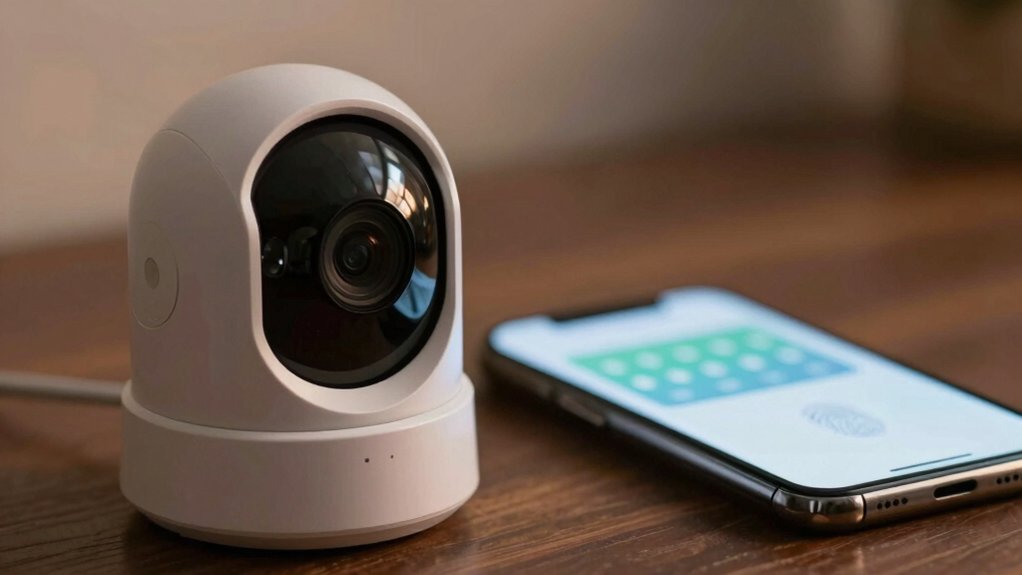
You should enable two‑factor authentication on your camera account to stop attackers who get your password from viewing or controlling feeds. Sign in to the official site or app, go to Account → Security → 2FA, choose an authenticator app or email codes, and generate backup codes you store offline.
Prefer authenticator apps over SMS; harden passwords, keep firmware updated, and segment cameras on your network. Continue for practical setup steps, recovery options, and vendor guidance.
Securing Security Camera Accounts With Two Factor Authentication: You should enable two‑factor authentication on your camera account to stop attackers who get your password from viewing or controlling feeds. Sign in to the official site or app, go to Account → Security → 2FA, choose an authenticator app or email codes, and generate backup codes you store offline.
Why Enable 2FA for Your Camera Account
Why add two-factor authentication to your camera account? You’ll gain a second verification step beyond a password, reducing unauthorized access risk even when credentials are compromised. Implementations typically use an authenticator app (device-generated codes) or email one-time codes, offering flexible verification options that fit different threat models and user capabilities.
You’ll defend against credential stuffing and credential reuse attacks common in smart home ecosystems by requiring a separate factor tied to a device or inbox. Security guidance and vendor forums emphasize 2FA as a core improvement for protecting camera feeds and account metadata.
Expect usability tradeoffs: added steps during login and potential recovery complexity if you lose the second factor. Evaluate vendor lock-in risks when a provider’s 2FA method ties you to proprietary apps or recovery procedures.
Balance protection gains with operational overhead, document your recovery plan, and choose standards-based 2FA when possible to minimize future migration friction.
Enable 2FA Now (Web and Mobile Quick Steps)
Ready to lock down your camera account? Sign in to your Reolink account on the official site or mobile app. Open Account Details → Security → 2FA, and click Turn On. The interface will prompt you to choose a verification method: request an email verification by clicking Send Code and entering the received code, or use an authenticator app and input the app-generated code.
After initial setup, generate backup codes under 2FA → Backup Codes by selecting Get New Codes and completing verification. The system issues 10 codes. Store those codes securely: print or download them, and never share them. Treat backup codes as your contingency for account recovery if you lose access to your primary 2FA method.
If you run into errors or need clarification during setup, submit a request to Reolink Support. Follow prompts exactly, confirm codes promptly, and verify that 2FA is active before closing the session. This will ensure continuous two factor authentication protection.
Best 2FA Methods for Cameras (Authenticator, Email, SMS)
Now that you’ve enabled 2FA and saved backup codes, pick the verification method that best balances security and convenience for your camera account. For strongest protection, use an authenticator app: it generates time-based one-time passwords locally, resists interception and SIM-swapping, and doesn’t require network access during device pairing or routine logins.
If you manage multiple cameras or accounts, store secrets in a secure vault and export/import per vendor guidance.
Email-based two factor authentication is a reasonable fallback: it’s convenient and familiar, but security depends on the email account’s own protections. Ensure that email has its own strong password and 2FA before relying on it for camera access.
SMS-based 2FA is the least secure option due to SIM-swap and carrier interception risks; use it only if no other method is available. Regardless of method, enforce device pairing confirmations for new devices and treat authenticator apps as the default for the best balance of usability and security.
Lost Your Phone? Use Backup Codes & Account Recovery
Lost your phone? You can still access your camera account with planned lost phone recovery. Before losing access, generate backup codes under Account Details → Security → 2FA → Get New Codes. Backup codes usage: print or download the eight-digit codes and store them offline in a secure location.
- Generate: enable 2FA, verify via 2FA or Email Verification, then click Next to create new codes.
- Use: enter a saved eight-digit backup code when your SMS or authenticator is unavailable to regain account access.
- Recover: if backup codes fail or you didn’t create them, submit a request to Reolink/Wyze Support for account recovery assistance.
Treat backup codes as sensitive credentials: keep them confidential and never share. Regularly regenerate codes if you suspect exposure. This method provides deterministic recovery without relying on your device. It reduces lockout risk while maintaining strong second-factor security.
Hardening Tips: Passwords, Firmware, and Router Security
Backup codes give you a recovery path if your phone goes missing; however, they don’t protect the camera or network itself. You do that by hardening passwords, firmware, and router settings. Follow hardening tips and security best practices: reset default credentials immediately, create complex, unique passwords using upper/lowercase letters, numbers, and symbols, and store them in a password manager.
Enable automatic firmware updates or check regularly to apply vendor patches that close known exploits. Monitor vendor security advisories and act on recommended mitigations promptly.
Harden your router: change the default admin password, run the latest router firmware, and use WPA2 or WPA3 encryption. Segment cameras on a separate VLAN or guest network and disable unnecessary remote access or UPnP to reduce external exposure. Limit services and ports to the minimum required and log remote-access attempts.
These technical controls, combined with two-factor authentication and disciplined patching, materially reduce attack surface and improve resilience against compromise.
Pick Secure Cameras: 2FA Support and Vendor Criteria
Which cameras should you trust with 2FA? Choose vendors that explicitly support two-factor authentication for account login and camera access management, and that publish secure vendor criteria so you can verify claims.
- Verify 2FA methods: prefer authenticator apps and hardware keys; avoid SMS-only offerings.
- Firmware and updates: pick devices with prompt security updates and documented compatibility so 2FA remains functional after firmware changes.
- Vendor guarantees: confirm clear 2FA setup guides, backup code recovery, incident response documentation, independent security audits, and a transparent MFA roadmap.
You should test the vendor’s setup process before deployment. Confirm backup codes and recovery workflows work for your team. Require vendors to demonstrate independent audit results and provide timelines for MFA roadmap items. That technical diligence reduces operational risk and ensures your camera system’s access controls remain resilient against credential compromise.
Frequently Asked Questions
Can 2FA Slow Down Live Camera Streaming Performance?
No, 2FA won’t slow live camera streaming performance during normal viewing. You’ll authenticate once (or periodically); then the camera or cloud session uses sustained data encryption and stream keys. That continuous stream isn’t rechecked per frame.
Privacy concerns remain important: implement strong encryption and secure token handling to prevent session hijacking. Optimize session lifetimes and token refresh intervals so authentication overhead doesn’t interfere with real-time video delivery.
Will Installers or Techs Need 2FA to Set up Cameras?
Yes, installers and techs often need 2FA to set up cameras. You’ll verify installers 2FA feasibility against vendor policies, onsite access controls, and provisioning workflows.
You’ll assess techs 2FA requirements for initial device pairing, account creation, and remote troubleshooting. You’ll implement role-based exemptions or temporary tokens where strict 2FA hinders deployment; log all actions, and ensure secure fallback procedures that preserve auditability while minimizing setup friction.
Do Smart Home Hubs Bypass Individual Camera 2FA?
Not usually, hubs generally respect camera 2FA; however, implementation varies. You’ll need to verify whether the hub uses token-based delegation or stores credentials. Token delegation preserves two factor protections, while stored credentials can bypass them.
Evaluate two word discussion ideas: token vs credential. Assess privacy implications: check hub firmware, OAuth support, and access logs. Use vendor docs and test accounts to confirm whether hub integration weakens your camera’s two factor security.
Yes, you can provide family access without compromising 2FA by avoiding shared credentials and using supported account features. Create individual accounts with role-based permissions. Enable device or app-based 2FA tokens, and use trusted device allowances or temporary access links.
If the vendor lacks multi-user controls, use a managed password vault and revoke tokens on demand. Monitor access logs and enforce strong recovery controls to prevent unauthorized bypasses.
Are There Legal Requirements for 2FA on Surveillance Systems?
Generally, no universal mandate requires 2FA on surveillance systems. However, you should assume industry-specific and regional rules may demand enhanced access controls for privacy compliance and data retention obligations. You’ll check laws (e.g., healthcare, finance, workplace surveillance) and contractual or insurance requirements.
Implement 2FA where regulations, audits, or retention policies require preventing unauthorized access, logging, and tamper resistance. Document your technical controls and review them periodically.
Conclusion
Enabling two-factor authentication is a practical, low-friction step that dramatically reduces account compromise risk. Enable 2FA on both web and mobile; prefer authenticator apps over SMS and store backup codes securely.
Combine 2FA with strong unique passwords, timely firmware updates, and router segmentation for layered defense. If you lose your phone, follow recovery procedures immediately.
When buying cameras, verify vendor 2FA support and clear security practices to minimize long-term exposure.
Related reading: Network Security Basics — a closer look at this topic.