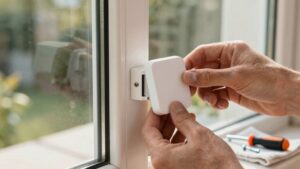
Using Geofencing With Home Alarm Systems and Cameras
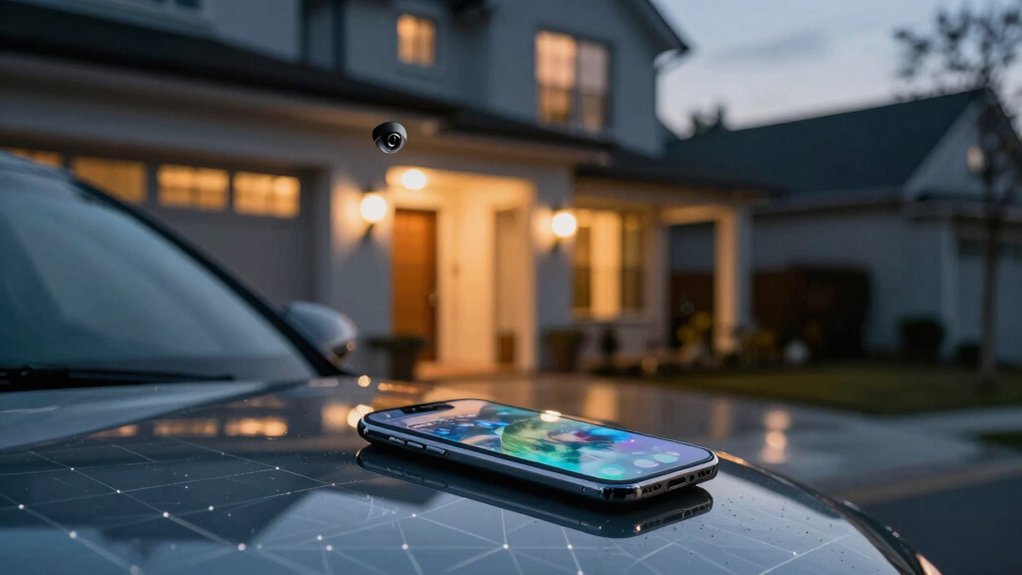
You can use geofencing to auto-arm/disarm your alarm, switch camera modes, and trigger arrival/departure scenes for locks, lights, and thermostats. It works by defining a perimeter in the app, granting background location permissions, and letting the panel or cloud run rules on enter/exit.
Reliability depends on GPS, network, and app permissions. Test radius and delays to avoid false triggers; check subscriptions for features and keep location data retention minimal. More setup and troubleshooting tips follow.
Using Geofencing With Home Alarm Systems and Cameras: You can use geofencing to auto-arm/disarm your alarm, switch camera modes, and trigger arrival/departure scenes for locks, lights, and thermostats. It works by defining a perimeter in the app, granting background location permissions, and letting the panel or cloud run rules on enter/exit .
Is Geofencing Right for My Alarm and Cameras?
Wondering if geofencing will fit your alarm and camera setup? You’ll assess capability, reliability, and identity handling first. Check that your alarm panel, cameras, and platform app (Alarm.com, ADT, Guardian) explicitly support geofencing and any required subscription or monitoring plan.
Test GPS accuracy and device permissions; poor location fixes or revoked permissions will cause missed triggers. Decide whether you’ll use a single smartphone identity for home/away scenes: that simplifies behavior but can create gaps if the phone’s battery dies or is left behind.
Configure actions you want automated: arming/disarming, camera recording rules, lighting, and sensor adjustments. For troubleshooting, monitor logs and run repeatable entry/exit tests to confirm consistency.
Consider privacy and fail-safes; set fallback schedules or manual overrides so your system isn’t solely dependent on location. Use Two word discussion idea 1 and Two word discussion idea 2 to label configuration steps or test cases in your setup checklist.
How Geofencing Works With Alarms, Panels, and Cameras
If you’ve verified compatibility and tested GPS reliability, next look at how the phone’s location data actually drives your system: geofencing creates a virtual perimeter whose enter/exit events the companion app forwards to your alarm panel, cameras, and automation rules.
You configure the fence radius and link devices in the app. When your device crosses the boundary, the app sends a trigger to the panel to arm or disarm and to cameras to change recording or activity mode. Rules run locally on the panel or via cloud services; they coordinate door locks, lights, and notifications with camera state. Reliable geofencing reduces manual steps and false alarms, but it depends on consistent GPS, network connectivity, and correct device assignment.
Consider geofencing privacy and data collection: the app stores timestamps and location points to execute rules and for diagnosis. Review retention policies and permissions.
Test entry/exit delays, sensitivity, and fallback behaviors to ensure predictable security states.
Which Devices and Apps Support Geofencing (Alarm Panels, Cameras, Hubs)
Which devices will actually respond to your geofence depends on the ecosystem and hub you choose: Alarm panels (Alarm.com, ADT, Guardian) often natively support geofence triggers for arming/disarming and can relay those events to integrated cameras. Hubs and platforms (Matter-compatible bridges, Alexa, Apple Home, Google Home) determine whether third-party cameras, locks, lights, and thermostats can join those rules.
You’ll enable location services, set a perimeter radius, and map arrival/departure scenes in the app. Alarm panels typically provide the lowest geofence latency to arm/disarm and toggle camera recording because they’re built into the monitoring workflow. Hubs and smart-home platforms extend control to a broader device mix but introduce variability: cross platform integration may require bridges, vendor accounts, or Matter support.
Check each vendor’s documentation for supported device types and any required firmware or bridge. Also, verify mobile-app behavior on iOS and Android because OS-level permission handling affects trigger reliability and perceived geofence latency.
Common Automations: Locks, Lights, Thermostats, and Camera Rules
Having set up devices and confirmed which platforms will respond to your geofence, you can use that location signal to automate locks, lights, thermostats, and camera behavior so your home reacts automatically as you leave and return.
Configure door locks to auto-lock and arm the alarm when your phone exits the geofence; confirm fail-safes (manual override, delayed lock) to avoid lockouts. Set smart lights to trigger on approach or to turn off when you depart, using brightness and color presets for arrival scenes.
Program thermostats to shift to an energy-saving setpoint away and resume comfort temperatures on return. This ensures schedule conflicts do not override geofence actions. Define camera rules that disable motion recording while you’re home and enable recording/alerts when you’re away.
Combine these into scenes, for example, “Home From Work,” so one geofence event executes coordinated actions. Review privacy practices and apply data minimization: limit location retention, anonymize logs, and restrict third-party sharing.
Quick Setup: Arm/Disarm and Camera Behavior (Step‑by‑Step)
Ready to get your system reacting to your comings and goings? Start by enabling location permissions for your alarm app on each phone and confirm location services are active. Define the home geofence radius in meters; keep it large enough to avoid missed triggers but small enough to limit false activations. Choose actions for exit and entry: arm to “Away” and set cameras to full recording on exit. Disarm to “Home” and reduce or pause recording on return.
Next, map camera rules to geofence status and create scenes. For example, Away: lights off, doors locked, cameras active; Home: lights on, climate adjust, cameras standard monitoring. Test with a plug-in device before applying to primary sensors. Walk outside the radius and re-enter to observe timing.
Measure geofence latency and adjust radius or app polling intervals if needed. Confirm reliable operation across devices and note any smartphone power-saving settings that may affect responsiveness.
Troubleshooting Geofencing: Accuracy, False Triggers, and App Bugs
Now that you’ve set up geofence actions and tested entry/exit behavior, you’ll want to troubleshoot when the system behaves inconsistently. Check GPS quality first: Poor signal, indoor testing, or VPNs often cause missed events or false triggers. For reliable testing, take the device outside with a clear line of sight to satellites.
Review settings: Confirm background location permissions, correct time/zone on phone and hub, and that the app’s geofence radius isn’t outdated. Start geofence calibration at 0.5–1 mile and tighten gradually while observing behavior. If different phones or platforms disagree, verify each app uses the same home address and permissions.
Address app issues with standard app bug troubleshooting: Update the app, reboot phone and hub, logout/login, and re-enroll the device in the geofence. If events repeat or fail after those steps, capture logs/screenshots and contact support for deeper diagnostics.
Privacy, Data Collected, and How to Minimize Risks
How much location detail does your alarm and camera system collect, and who can access it? You should know geofencing uses continuous or periodic smartphone location to trigger actions. The privacy implications include exposure of home address, movement patterns, and timestamps. Vendors may use locations for analytics, marketing, or sharing with third parties after consent; this affects data retention policies and your risk surface.
- Limit access: Grant location permission only while using the app, disable background location, and audit permissions for all smart home apps.
- Reduce sharing: Review vendor settings, opt out of marketing analytics where possible, and use a dedicated smart-home account to compartmentalize data.
- Operational controls: Enable only necessary geofencing features, manually turn off location services when not needed, and check vendor data retention and deletion options regularly.
Follow these steps to minimize exposure and keep geofencing useful without unnecessary data collection.
Compatibility, Cost, and How to Choose a Reliable Provider
Choosing a geofencing-capable alarm and camera provider means checking ecosystem compatibility, cost trade-offs, and operational reliability up front. You should verify compatibility considerations: ensure your devices work with Alexa, Apple Home, Google Home, or Matter. Confirm the system can integrate with existing hubs or security panels. Expect setup to require location services, your home address, and app-specific permissions to define the geofence.
Evaluate cost: many geofencing features are included in smart security packages, but incremental costs arise from compatible hubs or subscription tiers. Compare plans for the automation you need—arming/disarming, lighting and lock control, and camera activation scheduling—against monthly fees.
Prioritize provider reliability: choose vendors offering 24/7 monitoring, documented response times, responsive customer service, and clear support for geofencing scenes across cameras, locks, lights, and thermostats. Test automation during trial periods and get SLA details before committing.
Frequently Asked Questions
Can Geofencing Work for Multiple Residents With Different Phones Simultaneously?
Yes, you can have multiple residents trigger geofencing simultaneously. You set individual device radii so geofence overlap handles shared areas. The system processes concurrent entries and exits.
You’ll need to account for battery variance per phone since low-power devices may report late or drop out. Configure per-user permissions, staggered geofence sizes, and server-side aggregation to resolve conflicting signals. This ensures reliable and predictable automation and alerts.
What Happens to Automations During a Phone Battery or GPS Outage?
If a phone has battery outages or GPS outages, your geofence-based automations can fail or delay. You’ll need fallback rules so multiple residents with different phones don’t break scenes: use required-people counts, manual arming, or network/device sensors (Wi‑Fi, presence tags) as backup.
The controller should de-duplicate conflicting triggers and log missed events. Test scenarios for each phone and document recovery steps to ensure predictable behavior.
Can Geofencing Trigger Emergency Services Automatically?
No, geofencing typically won’t automatically call emergency services. You can configure alerts or trigger alarms; however, automated 911 calls are limited by geofence privacy policies and platform constraints. Many systems require manual confirmation to prevent false alarms.
You should understand emergency response limitations, liability, and local regulations before relying on automation. Test workflows, enable reliable fallbacks (manual panic buttons, monitored alarm centers), and document procedures for responders.
How Do Guest Visitors or Dog Walkers Temporarily Bypass Geofencing Rules?
You temporarily let guests or dog walkers bypass geofencing rules by creating a geofencing bypass token or scheduled guest access workflow tied to their device or a time window.
You’ll configure guest access workflows in the alarm/camera app; set start/end times, permissions, and optionally one-time PINs. The system maps that workflow to a relaxed geofence profile, logs activity, and reverts automatically. This minimizes manual intervention while preserving auditability.
Is Geofencing Legal or Restricted in Rental or Multi‑Unit Buildings?
Yes, geofencing legality varies. You’ll face rental restrictions and multi-unit rules tied to privacy concerns, building codes, lease clauses, HOA policies, and tenant rights. You’ll need permit requirements, zoning compliance, and clear enforcement mechanisms.
Watch data retention, consent, shared access, third party apps, and security vulnerabilities. Define notification preferences, opt-out options, guest access policies, and accessibility considerations in contracts to ensure lawful, auditable deployment.
Conclusion
Geofencing can simplify home security by automating arming, camera modes, locks, and climate based on your location. If you need convenience and respondable automation, it’s worth considering: just verify device and app compatibility, battery and GPS accuracy, and the provider’s privacy practices.
Test routines thoroughly, and set reliable fallback rules. Limit shared data. With careful setup and a trusted ecosystem, geofencing reliably reduces manual tasks while maintaining security and control.
Related reading: Creating Automations for Arming and Disarming Home Security — a closer look at this topic.