Integrating Security Cameras With Alexa Routines
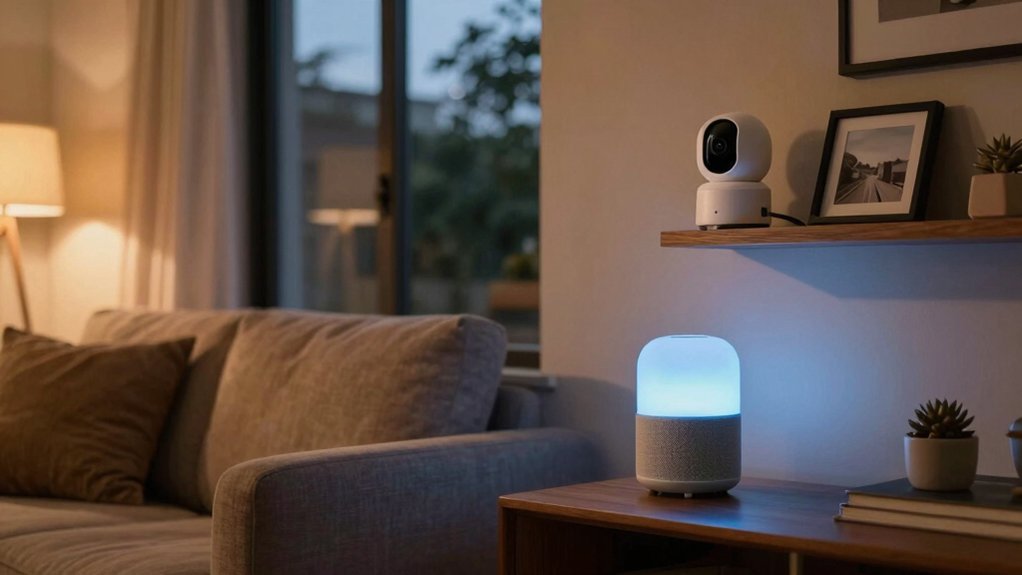
You can link your Ring, Nest, eufy, or other Alexa‑compatible camera by enabling its skill, authorizing the account, and tapping Discover Devices in the Alexa app.
Create a Routine (More > Routines > Create) and choose Smart Home > your camera as the motion trigger. Then add actions like lights, announcements, Echo Show live view, or Cameras > Record.
Check motion/privacy settings, subscription limits, and device discovery if it fails. Keep going to learn setup tips and troubleshooting.
Integrating Security Cameras With Alexa Routines: You can link your Ring, Nest, eufy, or other Alexa‑compatible camera by enabling its skill, authorizing the account, and tapping Discover Devices in the Alexa app. Create a Routine (More > Routines > Create ) and choose Smart Home > your camera as the motion trigger .
Quick Recipe: Create a Motion‑Triggered Alexa Routine (Step‑by‑Step)
Want to start automating responses when your camera senses motion? You’ll create a motion triggered Alexa routine in the app: More > Routines > Your Routines tab > Create Routine. Under “When this happens,” pick Smart Home > Choose Device, select your Ring or supported camera, and set the motion behavior as the trigger.
Next, tap Add action under Alexa Will and pick what happens when motion’s detected: turn lights on, show the camera feed on an Echo Show, or other actions. For cameras, choose Smart Home > Cameras > Record to start video recording as part of the routine.
Enable optional push notifications if you want alerts in addition to actions. For routine customization, order multiple actions and set delays so responses fit the situation.
Save the routine and test it by creating motion near the camera to confirm the trigger, actions, recording, and notifications behave as configured.
Link Your Camera to Alexa and Discover Devices
How do you get your camera talking to Alexa? Install the camera’s skill in the Alexa app, sign in to your camera account, then run device discovery so the camera appears under Smart Home devices. Make sure your camera and Alexa devices share the same Wi‑Fi network for reliable live feeds and routines.
| Step | Action |
|---|---|
| 1 | Install camera skill in Alexa app |
| 2 | Link account and authorize |
| 3 | Tap Discover Devices |
| 4 | Confirm camera under Smart Home |
After linking cameras, you can use voice commands like “Alexa, show me the front door camera” on Echo Show or Fire TV. For routines, pick the camera (Ring or compatible) as the trigger under When. Then add actions: display feed, adjust settings, or activate related smart devices.
Device discovery is the key step; without it, Alexa won’t see the camera. Test the feed and a sample routine to confirm triggers and viewing work reliably.
Which Cameras Work With Alexa (Motion, Live View, Subscription Notes)
Now that your camera’s linked and discovered, you’ll want to pick a model that supports the Alexa features you need: motion-triggered routines, reliable live view on Echo Show/Fire TV, and any subscription-based extras. Alexa works with many cameras via skills and account linking. Ring Stick Up Cam, eufyCam S4/SoloCam S340/S220, and Nest Cam IQ Indoor are proven options. Each has tradeoffs: Ring is simple and durable; eufy focuses on high resolution and local options; Nest offers continuous streaming and advanced detection.
Check motion privacy settings in each app before enabling Alexa routines.
- Pick based on detection quality — person/face vs basic motion — to reduce false triggers.
- Verify live view performance on your Echo Show/Fire TV; same Wi-Fi and linked accounts matter.
- Confirm subscription limits for cloud storage, AI alerts, and how Alexa exposes clips.
Match features to your routine needs and privacy expectations. Don’t assume all integrations behave the same.
Add Actions: Lights, Announcements, Echo Show Live View, and Camera Recording
Which actions do you want the routine to perform when your camera detects motion? You can add Lights, Announcements, Echo Show Live View, and Camera Recording as discrete actions in an Alexa routine. Turn lights on to deter intruders or improve visibility; select specific bulbs or groups under Smart Home > Lights.
Use Announcements to broadcast a short voice alert across Echo devices: phrase it clearly (for example, “Motion detected at the front door”) and test volume levels. Echo Show Live View will display the camera feed on Echo Show devices or Fire TV when the routine runs; pick the camera and target display.
For camera recording, enable the Record action in Smart Home > Cameras > Record so compatible cameras start saving footage on trigger. Check device compatibility and interoperability concerns before relying on a sequence: not all cameras or smart bulbs support every action, and behavior can vary by brand or subscription.
Test the full routine to confirm expected results.
Set Conditions: Night‑Only, People‑Only, and Schedule Rules
When you set conditions for a camera-triggered routine, pick the precise combination of Night-only, People-only, and Schedule rules that matches your security needs. This ensures Alexa runs actions only under the circumstances you define. You’ll reduce false alerts and ensure responses activate when they matter. Use night only to limit triggers to defined nighttime hours. Combine it with people-only analytics to ignore animals and vehicles.
Apply schedule rules to create fixed windows (e.g., bedtime, away hours) and pair them with motion or person detection.
- You feel safer when routines act only at night and for human detections.
- You avoid nuisance activations by adding people-only filters.
- You gain control by stacking schedule rules with night-only and people-only conditions.
Be explicit: set start/end times, enable human detection, and test combinations (Night + People + Schedule) so Alexa shows live view, announces, or turns lights on only under the precise conditions you configured.
Troubleshoot When a Routine Won’t Run (Diagnostics Checklist)
After you’ve confirmed your Night/People/Schedule settings, troubleshoot any routine failures with a focused checklist so you can find the fault quickly. Start by verifying the Ring device is linked to Alexa. Ensure that the routine trigger points to the correct Ring device and behavior under Smart Home: When.
Check that Alexa Will actions use the intended Ring device and that “Send notification” is toggled as you want. Confirm both the Ring camera and the Echo performing the action are on the same Wi‑Fi network. Review routine history or test the trigger to see if motion or another event fires the routine.
If problems persist, rediscover devices in the Alexa app. Ensure the Ring skill is enabled and functioning for live actions.
| Checkpoint | Action |
|---|---|
| Device link | Confirm Ring linked to Alexa |
| Trigger | Verify correct Ring device/behavior |
| Actions | Confirm Alexa Will targets device |
| Network | Same Wi‑Fi for camera and Echo |
| Rediscover | Re-scan devices; check Ring skill |
Advanced Workflows: Mailbox Sensor, Snooze Voice Routines, and Automated Recording
Curious how to make your Ring system do more than just alert you? You can craft workflows that combine a mailbox sensor, snooze routines, and automated recording so your setup acts intelligently. Link a Ring Mailbox Sensor to a routine using the Motion Detected trigger to announce deliveries and optionally show a camera feed on an Echo Show. Use the Smart Home > Cameras > Record path in the routine to pick the camera and set recording behavior before saving.
- Feel relieved: get a clear on-screen clip and announcement when mail arrives.
- Stay in control: use a voice command like “Alexa, snooze alerts” to silence notifications temporarily.
- Sleep easier: schedule night-only triggers so motion shows feeds and records only during set hours.
Test integrations, confirm camera permissions, and keep routines lean; that ensures reliable recordings and predictable snooze routines without extra noise.
Privacy, Storage, and Subscription Tradeoffs
How do you balance convenience with control when adding cameras to Alexa routines? You’ll weigh privacy tradeoffs against automation benefits: routines can auto-record or push live feeds to Echo Show/Fire TV. However, linked accounts (Ring, eufy, Arlo) and skills mean those providers manage footage access and retention. To enable routine actions, you must link the camera account in the Alexa app and keep the camera and Echo on the same Wi‑Fi. Therefore, assess who can view streams and receive alerts.
Storage considerations dictate which routine features you get. Some brands offer local storage; others require subscriptions (Ring Protect, Blink plans) to retain clips or enable “Record” actions in Smart Home > Cameras > Record. If you prefer local-only storage, choose a camera that supports it and limit cloud permissions in both the camera app and Alexa.
Finally, test routines with minimal privileges, confirm retention policies, and document any subscription lock-ins before scaling automations.
Frequently Asked Questions
Can I Trigger Routines From Third‑Party Camera Motion Zones?
Yes, you can; it depends on the camera motion source and third party integration. If the camera’s app or cloud service exposes motion-zone events via Alexa-compatible skills, SmartThings, Home Assistant, or an IFTTT/Webhook bridge, you’ll trigger Alexa routines.
Configure the third-party integration to send zone-specific motion alerts. Then, use those events as routine triggers. Test sensitivity and delays, and document which zones map to which routine to avoid false activations.
Can I Use Camera Routines With Multiple Alexa Households?
No, you can’t directly use one camera’s routines across multiple Alexa households. Alexa enforces disjointed compatibility: devices and routines belong to a single household account. Therefore, cross-household sharing requires workarounds.
You can share camera access with another account or use third-party services (IFTTT, cloud webhooks) to relay motion events into each household’s Alexa ecosystem. Those approaches add latency and complexity; so test thoroughly for reliability and privacy implications.
Do Routines Work if My Internet Goes Down Locally?
No, routines usually won’t run if your internet goes down. You’ll face offline functionality limits because Alexa relies on cloud processing. Some Echo devices support limited local actions; however, camera routines and many smart home integrations still require cloud access.
Check device-specific local network limitations and enable any available local control features or hub-based automations. For full resilience, create hub-driven rules or backup automation that don’t depend on external internet.
Can I Restrict Which Echo Devices Announce Camera Alerts?
Yes, you can restrict which Echo devices announce camera alerts. You’ll use device groups and per-camera announcement settings in the Alexa app. Assign cameras to specific rooms or devices and enable restricting announcements where available.
For multi-device routing, set priority speakers or use Alexa Guard or Camera notification settings to limit broadcasts. Test each camera’s notification preferences so alerts only play on chosen Echos and do not flood every device.
Will Routines Trigger for Pets or Other Small Animals?
Yes, routines can trigger for pets or small animals if your camera’s motion detection picks them up. You’ll need to fine-tune sensitivity and activity zones to reduce false triggers.
Use privacy controls to exclude areas where pets roam or schedule camera pauses during expected pet activity. Test changes and review event clips to confirm behavior. Adjust thresholds gradually until routines activate only for meaningful motion, not routine pet movement.
Conclusion
You’ve now got a practical path to blend cameras with Alexa routines: link the camera, pick motion or person triggers, add lights, announcements or Echo Show live view, and set time or night-only conditions. Troubleshoot with quick diagnostics, and use sensors or snooze rules for smarter flows.
Decide on recording and subscription tradeoffs up front to match privacy and storage needs. Test each routine; then iterate until it’s reliable.
Related reading: Using Smart Displays to View Doorbell Live Feed — a closer look at this topic.