
Hub Integration Basics for Security Devices
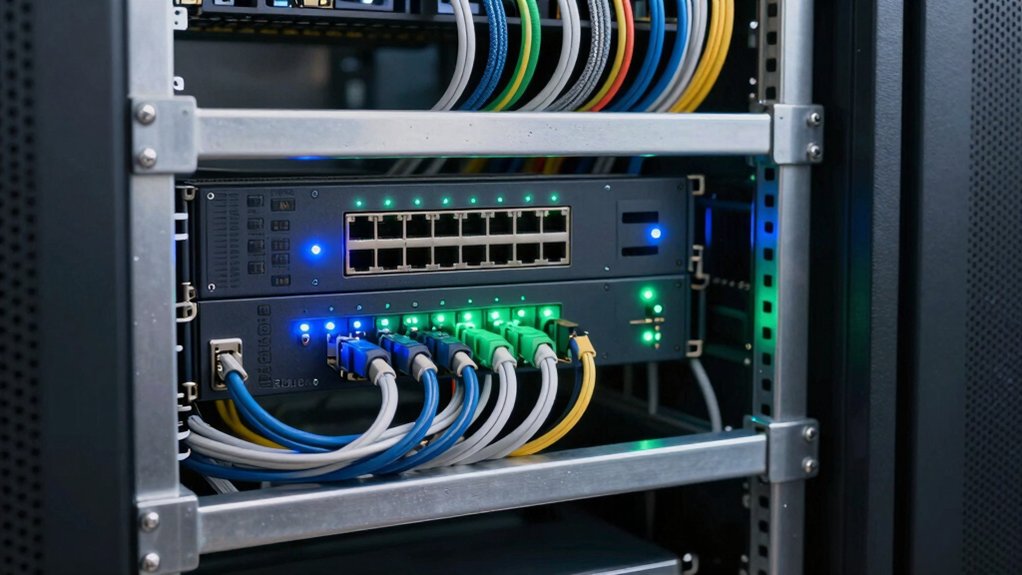
A smart hub becomes your system’s command center: it routes device telemetry, translates Wi‑Fi, Zigbee, Z‑Wave, and Bluetooth, and gives you unified control and event logging. You’ll set deterministic automations, such as locking doors when motion trips and triggering cameras on entry. You will also manage firmware and audit trails centrally.
Choose whether the hub is the authoritative controller or a secondary responder; this choice affects failover, joins, and latency. Keep going to see concrete protocol tradeoffs, pairing examples, and setup tips.
Hub Integration Basics for Security Devices: A smart hub becomes your system’s command center : it routes device telemetry, translates Wi‑Fi, Zigbee, Z‑Wave, and Bluetooth, and gives you unified control and event logging . You’ll set deterministic automations, such as locking doors when motion trips and triggering cameras on entry.
What a Smart Hub Does for Home Security
How does a smart hub improve your home security? You use a hub as the central station that routes commands and telemetry between devices and the internet, giving you unified control and a single app interface. It translates protocols: Wi‑Fi, Zigbee, Z‑Wave, Bluetooth. This allows cross‑brand sensors and cameras to communicate reliably.
Strategically, that protocol conversion reduces integration gaps that create false negatives and security myths about incompatibility. You’ll deploy automations (Home/Away/Night) and real-time monitoring to enforce consistent responses: alarm triggers, camera recording, and targeted notifications. The hub supports remote access for live checks and coordinated incident response without juggling multiple apps.
From a technical standpoint, it also centralizes event logging and firmware updates, improving auditability and patch management. For optimal performance, prioritize sensor placement to ensure radio coverage and minimize latency between devices and the hub.
In short, a hub simplifies operations, strengthens interoperability, and lets you manage policies and responses across the entire device ecosystem.
How Hub Integrations Link Sensors, Cameras, and Locks
Why do hub integrations matter for linking sensors, cameras, and locks? You rely on the hub to translate device-specific messages, route incoming alerts, and orchestrate coordinated responses across your security stack. The hub consolidates sensor triggers, camera streams, and lock state changes into a single control plane so automations can run deterministically.
You’ll configure scenes that, for example, lock doors when motion sensors trip and cameras begin recording. Alternatively, you can pause recording when you unlock a door for a verified user. The hub can act as primary or secondary controller depending on device compatibility and integration depth; therefore, choose hubs that support required device combinations. It bridges the LAN and cloud, enabling remote control, push notifications, and centralized logging for incident review.
Operationally, include energy monitoring for battery-powered sensors and locks to prevent service gaps. Plan for compatibility constraints and testing to ensure incoming alerts and automated chains perform reliably under real-world conditions.
Which Wireless Protocols Matter (Z‑Wave, Zigbee, Wi‑Fi, Bluetooth)
Linking sensors, cameras, and locks reliably depends on the wireless protocols they use. You need to know which ones fit each role and how a hub mediates between them. Z‑Wave and Zigbee provide low‑power mesh networking for distributed sensors and locks; they extend range and improve reliability by relaying messages across nodes.
Wi‑Fi handles high‑bandwidth devices like cameras and cloud gateways but can congest local networks and affect real‑time control. Bluetooth supports close‑range device pairing and energy‑efficient peripherals such as battery sensors. As the integrator, you’ll treat each protocol by role: mesh for distributed low‑power nodes, Wi‑Fi for video and cloud access, Bluetooth for initial setup and niche devices.
A smart hub translates and routes commands across protocols; therefore, compatibility matters. Not all hubs support Z‑Wave, Zigbee, Wi‑Fi, and Bluetooth. Evaluate security protocols, device pairing workflows, and how the hub maps IDs and routes commands to ensure consistent latency, reliability, and secure cross‑protocol operation.
Picking a Smart Hub: Compatibility and Primary vs. Secondary Roles
What role do you want a hub to play in your system: the authoritative controller or a responsive secondary? You’ll choose based on control needs, protocol support, and integration limits. A primary hub vs secondary hub decision affects failover, automation scope, and which device translates traffic between LAN and cloud.
| Consideration | Impact |
|---|---|
| Protocol support | Determines device roster and cross‑protocol compatibility |
| Control scope | Primary manages automations; secondary follows or delegates |
| Integration limits | Some systems require specific hub/device combos |
| Expansion | Broad protocol support enables future growth |
Pick a primary hub if you need centralized automations, local decisioning, and device translations (Zigbee, Z‑Wave, Wi‑Fi, Bluetooth). Choose a secondary hub when a security panel or dedicated controller must respond locally but won’t orchestrate the full system.
Verify that your chosen hub supports the protocols you’ll deploy and any required vendor-specific integrations before committing.
Real Smart‑Hub + Security System Pairings (Examples & Outcomes)
How do real-world pairings between smart hubs and security panels change day-to-day operation? You’ll see practical shifts when a security pairing assigns primary vs. secondary roles and enforces protocol compatibility. For example, a Qolsys IQ Panel 2 Plus acting as a Z-Wave Plus hub lets you manage locks and lights directly from the alarm panel and triggers automations on motion or arming state.
Conversely, Honeywell Lyric operating as a secondary Z-Wave controller tied to Samsung SmartThings or Apple HomeKit lets the hub ecosystem orchestrate broader scenes while the Lyric retains alarm authority.
You’ll need to assess which device governs rules and which handles local device joins; that boundary defines latency, local failover, and how events propagate. Limited protocol stacks (Alarm.com with Z-Wave only, or hubs lacking Zigbee) constrain device choices and feature depth.
Strategically choose pairings that match your device portfolio and prioritize which system must remain authoritative for safety-critical responses.
How to Set Up Integrations, Automation Recipes, and Troubleshooting
After you’ve decided which hub controls authority and which handles device joins, you’ll configure integrations and automation recipes to enforce those roles and preserve safety behavior. Start integration setup by choosing activation paths: cohosted XSOAR with Device Security for simplified cloud-managed orchestration or a full on-premises XSOAR server for complete control.
Open the Integrations Catalog, review hub-configurable cards (VMware vCenter, Bitdefender Container Image Scanner examples), and use each card’s Configure button when compatible. Monitor card status (Available, Stopped, Pending, Active, Error) and last sync/running since timestamps to validate operations.
If a card shows “Action required,” follow the Sensor Card → Configuration Guidance path to add or correct XDR sensors and endpoint settings. Design automation recipes that call XSOAR playbooks and hub APIs to enforce authority rules.
For troubleshooting workflows, document stepwise checks: status, last sync, credentials, endpoint configuration, and XSOAR logs. Escalate to on-prem or cohosted support with precise state snapshots.
Frequently Asked Questions
What Rights or Roles Control Who Can Edit Hub Integrations?
You control who can edit hub integrations by assigning edit permissions to specific roles; role based access determines edit capability. You’ll grant a role the edit permissions for integration configuration, deployment, and versioning.
Limit edits to trusted roles (administrator, integration-manager) and use least-privilege principles. Audit role changes, enforce RBAC policies, and require approval workflows for elevated edits; this reduces risk while maintaining operational agility and traceability.
How Are Integration Logs Retained and Where Are They Stored?
Integration logs are retained according to your policy settings and rotated based on retention windows. They record integration events, errors, and audit entries. You’ll store logs in your configured storage location: typically centralized log servers, SIEMs, or cloud object storage with access controls and encryption.
You’ll enforce retention lifecycle rules, automated archival, and secure deletion. You’ll monitor storage location capacity and enforce compliance, ensuring integrity, availability, and forensic readiness.
Can a Hub Notify When an Integration’s Sync Fails Repeatedly?
Yes, you can configure a hub to notify when an integration’s sync fails repeatedly. You’ll define retry policies and alerting mechanisms that escalate after configurable attempts. You will tie notifications to notification failures thresholds and send alerts via email, SMS, or syslog.
Ensure audit trails record each failure and notification for forensics. Enforce access controls so only authorized operators can modify retry settings or silence alerts.
Is There a Catalog for Non-Hub-Configurable Third‑Party Integrations?
Yes, you can access a catalog listing non hub, third party integrations. You’ll find a centralized registry that documents integrations that don’t require hub configuration, including supported protocols, auth methods, rate limits, and compatibility notes.
Use the catalog to evaluate integration risk, deployment effort, and remediation paths. You can filter by vendor, platform, and maintenance status. Integrations flagged as “non hub” include implementation guides and contact points for troubleshooting.
How Does Pagination and Filtering Work in the Integration Dashboard?
You see paginated results with standard pagination behavior: pages return fixed-size slices with next/prev links and cursor tokens for stable sorting. You can request page sizes, jump to offsets, or follow cursors for consistent reads.
Use filtering syntax in query strings or JSON bodies to apply attribute, range, and boolean filters. You can combine operators with AND/OR and parentheses. You’ll get counts, applied filters echo, and predictable performance for large sets.
Conclusion
A smart hub centralizes your security devices, translating protocols, enforcing rules, and reducing latency for automated responses. When you choose a hub, prioritize protocol support, verified device compatibility, and clear primary vs. secondary roles to avoid conflicts.
Pair hubs with tested sensors, locks, and cameras to ensure reliable outcomes. During setup, use minimal automation rules, versioned firmware, and network segmentation. Monitor logs and apply staged troubleshooting to maintain deterministic, secure integrations over time.
Related reading: Integrating Security Cameras With Google Home Automations — a closer look at this topic.